Fix a quiet voice memo before you turn it into handwriting
A voice memo from across the room stays quiet in the file. Turning your speakers up does not fix the transcript. Free, no signup, about ten minutes: lift the level, then import the file and export a handwritten page.
The level steps below were run on Free Audio Editor in desktop Chrome on macOS, 16 October 2026. The pictures are that run. The handwritten page is the step after, on this site.
Take the rumble out first
Rumble, traffic, and a hand on the phone sit below the voice. A high-pass biquad keeps what is above the cutoff and rolls off what is below it. The high-pass filter on Free Audio Editor is that filter, in the browser. The file is not uploaded.
Drop the memo. Sweep Cutoff up from 20 Hz. For most voices, 80–120 Hz is where the rumble goes and the body of the voice stays. Past about 300 Hz, speech starts to sound like a telephone. Listen before you leave it there.
Mains hum is 50 Hz or 60 Hz, plus harmonics above that. A cutoff at 80–120 Hz removes the fundamental and a lot of the ring. It does not build a noise profile, and it does not pull a voice out of music or out of two people talking at once.
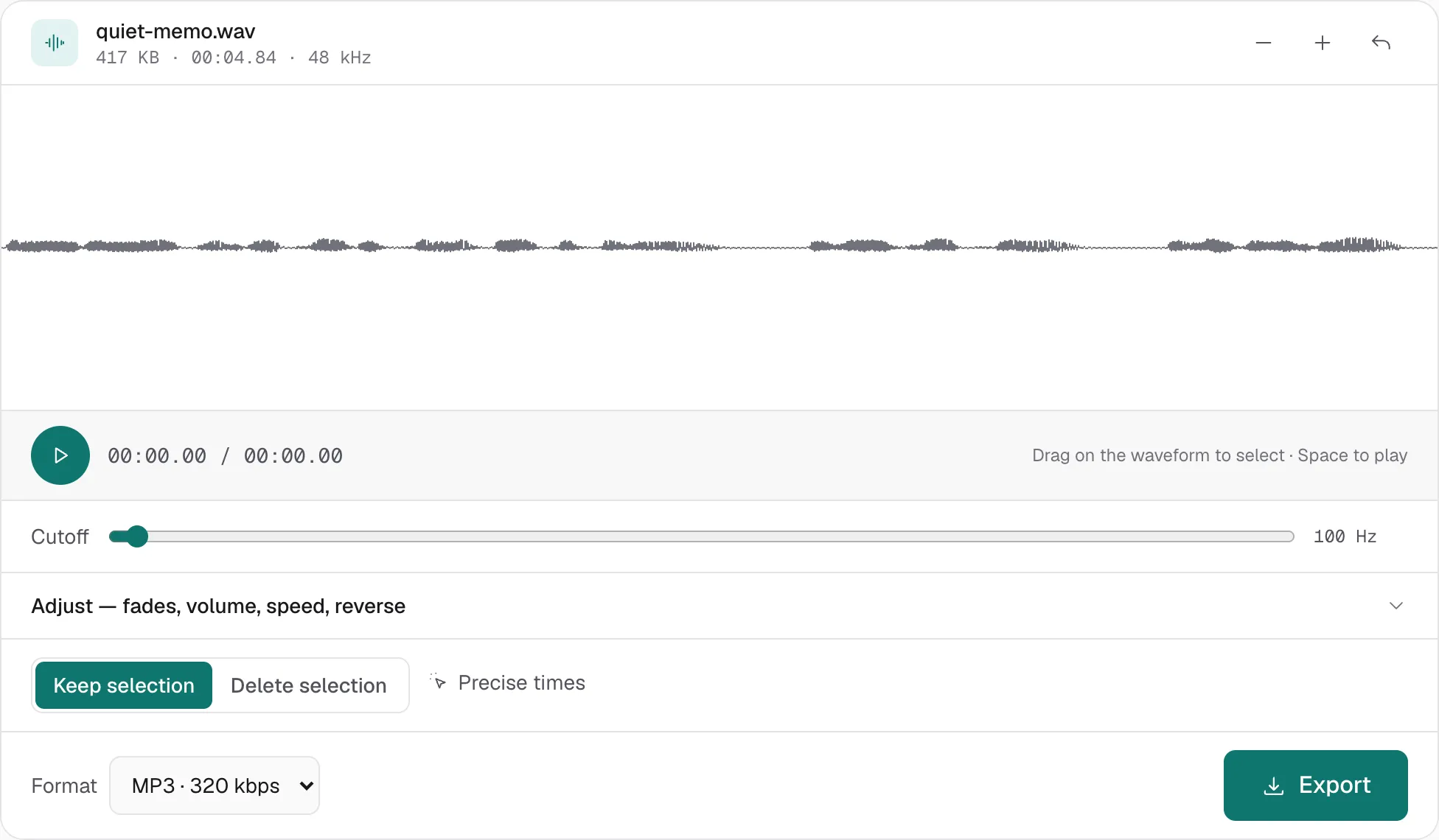
If you still have two steps left, export WAV. An MP3 here, then another MP3 on the next page, encodes the file twice.
Raise the peak, then boost only what is still quiet
Normalize measures the loudest sample and applies one gain to the whole file, until that peak sits just under clipping — about −0.2 dB on that page. Quiet words and loud words move by the same amount. The distance between them does not change.
That is peak normalization. Streaming services match an average over time, in LUFS, as specified in ITU-R BS.1770. This step does not. A voice memo does not need a loudness target.
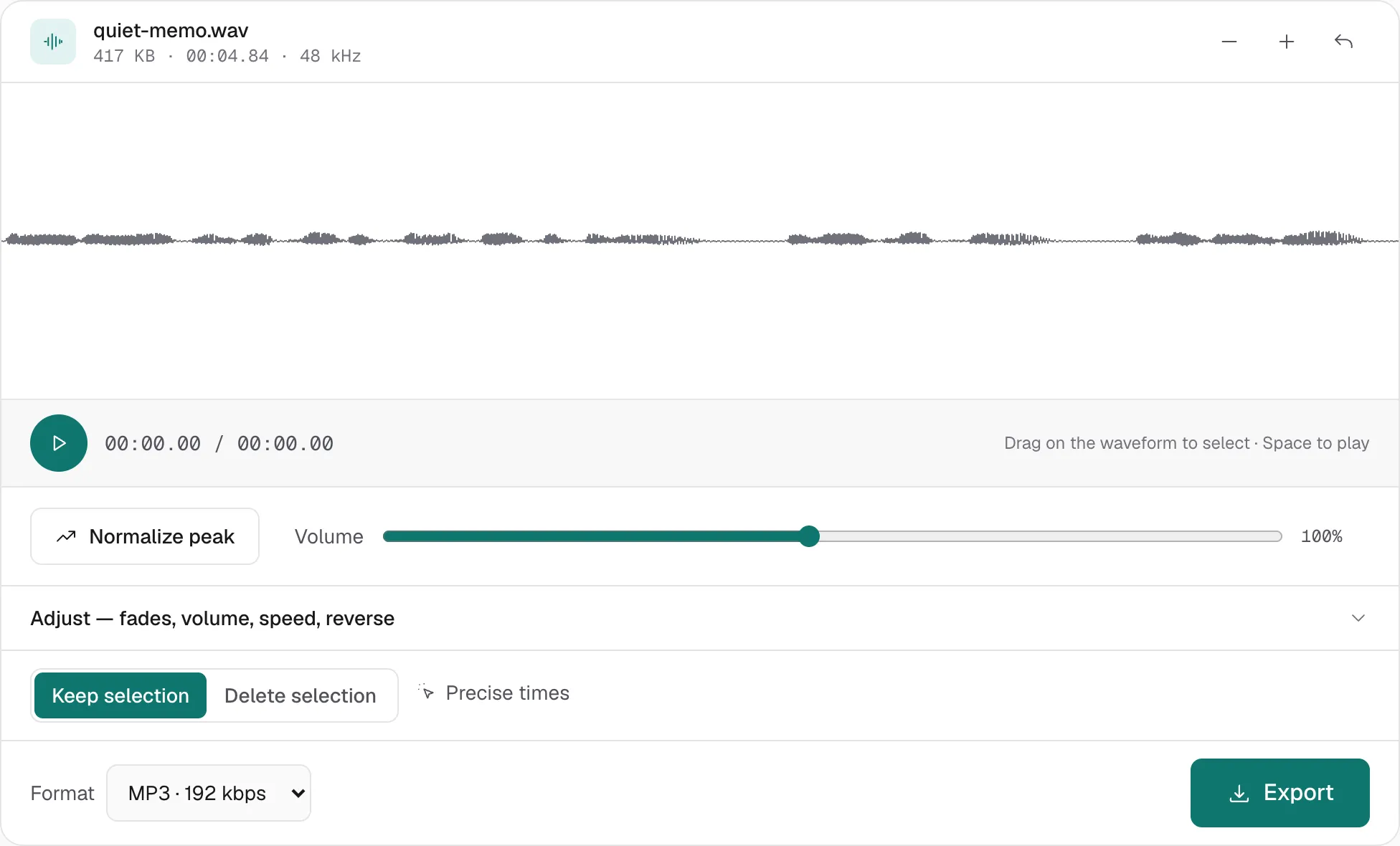
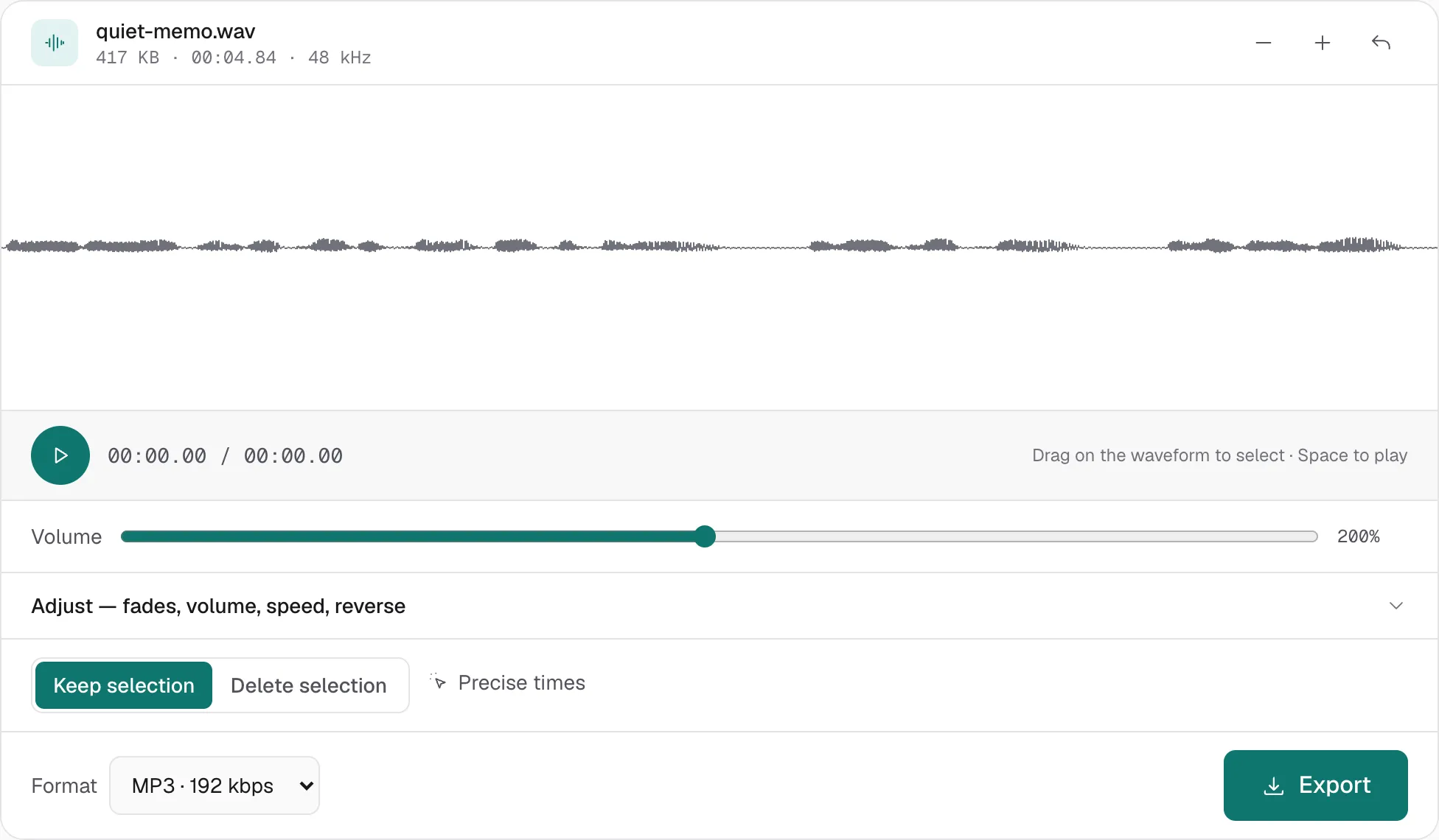
If the voice is still too quiet after that, increase the volume. The slider goes to 400%, about +12 dB, and a limiter holds the peaks so they do not clip. About 150–250% usually stays clean. Above about 300% the peaks start to pump. The test file below is at 200%.
Export MP3 · 192 kbps when this is the file you will import. Use 128 kbps only for speech you need to keep small. Use WAV if you are not done editing.
Import it and export the page
On the tool page, choose Import audio file and pick the MP3, WAV, or M4A you just saved. The transcript lands in the editor. Fix the words, pick the paper, export PNG or PDF.
The longer walkthrough of that import, including what the local model gets wrong, is transcribe a recording into handwritten notes. A quiet file is a level problem. A wrong character after a clear file is a proofreading problem. They are not the same job.
What this will not fix
- It will not make a whisper as loud as a shout in the same take. That is compression, and the pages above do not do it.
- It will not separate a voice from a television.
- It will not change speed without changing pitch. Speeding a lecture up also raises the voice.
- A file around an hour is the practical ceiling on the level tools, set by the memory in the tab.
- This site's import accepts a file the browser can decode. Safari is weaker on some codecs. Desktop Chrome or Edge is the safer import.
Tested, with honest limitations
The three screenshots are from one short test line, recorded quiet on purpose, opened in Free Audio Editor on desktop Chrome (macOS, 16 October 2026). Nothing in those pictures is a before-and-after transcript score. A louder file is easier to hear. It is not a guarantee the words will come out right. Proofread the page before you send it. We do not receive the audio — see the Privacy Policy.